Configuring a Reference Facility
You can display information about a facility that is different from the configured point for the object with the ReferenceFacility property for any CygNet-aware tool. Use the ReferenceFacility property to set the Facility (and optionally the Site.Service) of the primary point to a Facility ID and/or Site.Service that is different from the configured point for the object. The referenced facility can be set to resolve to a facility that matches a Source Attribute or a Facility Rule. See Configuring Point Identifiers for more information about primary (configured) points for an object.
Rather than a facility name, the reference facility can only be set to a Source Attribute or to a Facility Rule. The Site.Service and Facility of TheView/Workspace can be considered when resolving a given tool’s reference facility.
Examples
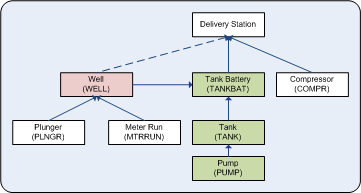
In the example below, a screen could be templated on the facility WELL, and show information from another facility in the system by referencing that facility in a Facility Rule, for example, TANKBAT, TANK, PUMP.
|
Reference Facility Example |
Imagine that you have several meters on a pipeline and one of the meters has a Facility ID of "5892713384." Instead of writing a screen with the exact Facility IDs of all the meters, you could write a screen using a Facility Rule to collect the more general descriptive information, such as Facility Site = "MySite," Facility Type = "METER," and Facility Description = "Causeway Meter N1." If there was equipment failure and you replaced the meter (Facility ID ="5892713384") with a new meter (Facility ID ="5892719987"), then the screen would resolve to the new meter with a different Facility ID (if you deleted the old Facility, or used another item in the rule, such as Facility Is Active = Y.)
Also see Default Trend for information about reference facilities on trend objects and Group Grid Tool - Columns Page for information about specifying a reference facility for a point in a group grid column.
Also see Relative Facilities for more information about this type of facility configuration.
For more information, see the subsections below:
Source Attribute
Use the Source Attribute option to specify a facility that matches any property from the primary point's configuration record or its facility attributes.
When displayed in the property sheet, a Source Attribute is displayed as a token (surrounded by percent signs) to indicate that it will be replaced with the attribute's value. The Source Attribute can be either a Facility ID or a complete facility tag (in which case it acts as both the Site.Service and Facility of the tool). This is slightly different from generic facility rules, which will always result in a facility tag.
Facility Rule
Use the Facility Rule option to build a rule to compare a facility attribute against a Reference Attribute, a Source Attribute, or a User Value.
Any Source Attribute used within a facility rule is displayed as a token. When displayed in the Property Sheet, the whole facility rule is enclosed in curly brackets { } to indicate that a query will be performed to find the facility that matches the attributes within the brackets. The query syntax supports all filter functionality (except for names and enabled/disabled status). See To Specify Facility Rules below.
CygNet-aware tools will ignore Facility and UDC if they have a Point ID or Long Point ID. However, since ReferenceFacility rules will override both Site.Service and Facility (and ReferenceFacility substitutions can override them), this means that the ReferenceFacility property may still have a partial effect on the tool (i.e., changes to facility will be ignored, but changes to Site.Service will still affect the tool).
Querying the ReferenceFacility property via script at runtime returns the configured rule text, not the resolved facility. The resolved facility can be retrieved via the CygNetTag property or the PointTag property.
Referenced facilities are resolved prior to the EventRestarted event being run, but after EventInitialize/EventRestarting. See Event Execution Order.
The configured rule text can be used in ShowFacilityRulesDialogSimple to initialize a filter in a Facility Rules dialog box. For example, the following string could be used to setup a CygNet-aware tool that resolves to a facility that references the tool’s configured facility: {facility_attr3 = ToCaseInsensitive(%facility_tag%)}
Define a Reference Facility
- Create a Studio screen.
- Add the desired CygNet-aware tool object to the screen.
- Right-click the object to open its property sheet. On the Normal page, click … next to the [ReferenceFacility] property.
- The drop-down menu provides two options for specifying the facility:
- select a Source Attribute from the Select Source Attribute dialog box to specify any property from the primary points configuration record or its facility attributes, or
- specify a Facility Rule Filter on the Set Facility Rules dialog box.
The reference facility can be specified using a filtered rule which will perform a query against a facility attribute.
- Select Specify Facility Rule Filter to view the Set Facility Rules dialog box. See Using CygNet Filter Rules for a general discussion about CygNet filter rules and their configuration.
|
Set Facility Rules Dialog Box |
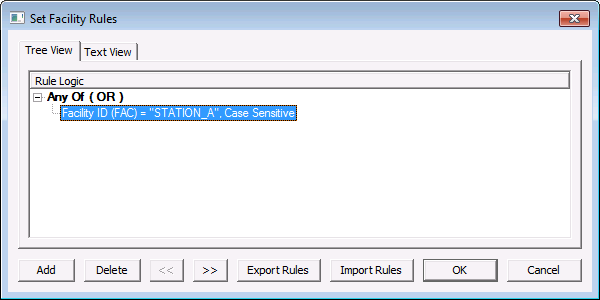
- Click Add to create a new facility rule. Or double-click an existing rule to edit.
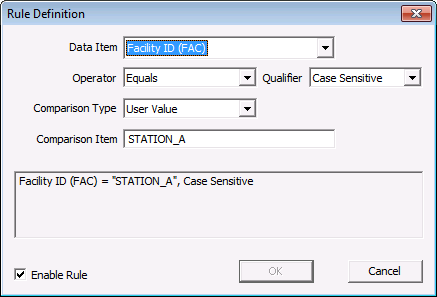
- Define the rule as desired by indicating the Facility Attribute (in the Data Item field), Operator, Qualifier, Comparison Type, and Comparison Item. See Adding Filter Rule Definitions for general information about these fields. The three Comparison Types available in this context include:
- Reference Attribute — Any system-defined reference facility attribute. Select the attribute in the Comparison Item field.
- Source Attribute — Any system-defined source attribute. Select the attribute in the Comparison Item field.
- User Value — Any user-defined value that you’d want to display or compare against. Type the actual value in the Comparison Item field.
|
Rule Definition Dialog Box |
- Click to enable the selected rule.
- Click OK to save the rule definition.
- Repeat steps 2. and 3. to define a compound rule, if necessary. Define compound rule properties (AND, OR, NOT) by double-clicking on the root rule.
- Optionally, give the rule a Name by double-clicking on the root rule on the Set Facility Rules dialog box. Note that only the root rule can be named. This is useful if you plan to reference this rule in another rule.
- Click OK to add the facility rule(s).
- Close the Property Sheet.
Facility Rule Examples
The following table gives several facility rule examples:
| Rule | Meaning |
|---|---|
|
{facility_attr10 = 'TANK'} |
This query creates a rule whose attribute is Facility Attribute 10, doing a case-sensitive string equality comparison to the User Value of TANK. |
|
{facility_attr10 = facility_attr9} |
This query creates a rule whose attribute is Facility Attribute 10, doing a case-sensitive string equality comparison to the Reference Attribute of Facility Attribute 9. Note that reference attributes are self-relative in this example. |
|
{facility_attr10 = %facility_attr9%} |
This query creates a rule whose attribute is Facility Attribute 10, doing a case-sensitive string equality comparison to the "locally sourced reference attribute" of Facility Attribute 9. In this case, %facility_attr9% comes from the object's primary point or the point triggering the notification, depending on usage. |
|
{not (facility_site = facility_id)} |
This query creates a rule that would return the first facility where the facility site does not equal the facility ID. It is equivalent to {facility_site <> facility_id}, but is more useful in cases like the second one where you have a larger expression to negate. |
|
{facility_attr20 = %facility_tag% OR (facility_type = %facility_type%) AND (facility_attr21 = %facility_attr20%)} |
This query is equivalent to {Facility Attribute 20 equals source Facility Tag OR (Facility Type equals source Facility Type) AND (Facility Attribute 21 equals source Facility Attribute 20)}. See Truth Table below. |
|
{not (facility_service = facility_service OR facility_site = facility_site AND facility_id = facility_id)} |
The inner expression would return all facility IDs where the facility_service equals the facility_service OR where both the facility_site equals the facility_site and facility_id equals the facility_id. This query would return the negative case for the inner expression. See Truth Table below. |
|
{(facility_service = facility_service OR facility_site = facility_site) AND facility_id = facility_id} |
This query is similar to the previous one, but the parentheses change the precedence of OR vs. AND. In this example, either the facility_service equals the facility_service or the facility_site equals the facility_site AND where the facility_id equals the facility_id. See Truth Table below. |
|
{facility_service = ToCaseInsensitive('MYSITE')} |
This query changes the default comparison qualifier from a case-sensitive string to a case-insensitive string. |
|
{facility_service = '10'} |
This query changes the default comparison qualifier from a case-sensitive string to an integer. |
|
{facility_service = ToInteger('10')} |
This query changes the default comparison qualifier from a case-sensitive string to an integer. |
|
{facility_service = ToReal('10.1')} |
This query changes the default comparison qualifier from a case-sensitive string to a real number. |
|
{facility_service = ToDate('2022-12-20 11:30')} |
This query changes the default comparison qualifier from a case-sensitive string to a timestamp. |
Note: The content of the parentheses for ToCaseInsensitive, ToInteger, ToReal, and ToDate can be a numeric or string literal (as above), an attribute name, or an external source attribute name.
Truth Table
The following truth table may help you write Boolean queries.
|
Boolean or Boolean and Boolean False or False and False = False False or False and True = False False or True and False = False False or True and True = True True or False and False = True True or False and True = True True or True and False = True True or True and True = True Note: The surrounding "not" just makes it so that the first three are true and the last five are false. |
(Boolean or Boolean) and Boolean (False or False) and False = False (False or False) and True = False (False or True) and False = False (False or True) and True = True (True or False) and False = False (True or False) and True = True (True or True) and False = False (True or True) and True = True Note: Parentheses work "as expected" (similar to most programming languages and SQL). Similar to addition and multiplication, "OR" has lower precedence than "AND." Parentheses allow you to adjust that precedence. |


